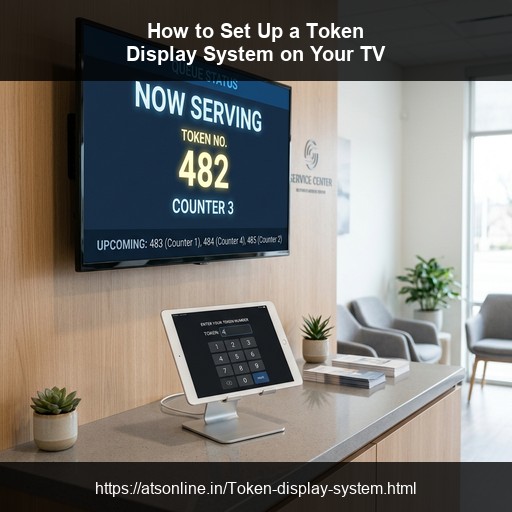
If you have ever wondered whether you could turn the TV in your waiting area into a professional token display system — the answer is yes, and it takes less than 10 minutes.
Gone are the days when setting up a queue management system meant hiring an electrician, buying expensive LED boards, and waiting days for installation. Today, any Smart TV, Android TV box, or even a laptop connected to a monitor can display live token numbers, voice announcements, and promotional content — all through a simple browser URL.
This guide walks you through exactly how to set up a token display system on your TV, step by step. No technical background needed.
1. What You Need Before You Start
The beauty of a modern cloud-based token display system is that you almost certainly already have everything you need.
Required:
- A Smart TV, Android TV, or any TV connected to a laptop/desktop — for the waiting area display
- A stable internet connection (broadband or 4G hotspot)
- A phone, tablet, or computer — for staff to call token numbers from the counter
- A Google Chrome browser (on both the TV and the staff device)
Optional but recommended:
- A 58mm thermal printer — to print physical token slips for patients
- A Bluetooth or wired speaker — if your TV speakers are not loud enough for voice announcements
- A wall mount for the TV — so patients can see it clearly from the seating area
That is it. No proprietary hardware, no dedicated token machines, no electrician, no IT team.
2. How It Works — The Simple Concept
Before getting into setup steps, here is the core concept in plain language:
The token display system is a cloud-based web application. This means it runs entirely in a browser — just like how you use Gmail or YouTube. There is nothing to install.
The system has three separate browser URLs:
- Display URL — Open this on your waiting area TV. It shows the current token number being served, the counter name, and any promotional content. It updates in real time.
- Keypad URL — Open this on the staff member's phone or computer at the counter. They use it to issue and call tokens with a single tap.
- Dashboard URL — Open this on the manager's device to monitor all counters, view reports, and manage settings.
When a staff member taps "Call Next" on their keypad, the display on the TV updates instantly and the voice announcement plays through the TV speakers. That is the entire system — simple, elegant, and completely wireless.
3. Step-by-Step Setup Guide
Step 1 — Register Your Account (2 minutes)
Visit atsonline.in/Token-display-system.html and contact the ATS team to get your account created. You will need:
- Your business/clinic/hospital name
- Your contact email and phone number
- Number of counters you want to set up
Once your account is ready, you will receive login credentials for the dashboard.
Step 2 — Log In and Configure Your Account (3 minutes)
Open the dashboard on any browser and log in. The first-time setup involves three quick configuration choices:
- Choose your display mode: Standard Multi-Input, Media Split, Location Grid, or Thermal Print Mode.
- Set your token prefixes (optional): e.g., "OPD-47" or "BIL-12".
- Upload promotional content (optional): Images or video files for the TV display.
- Set scrolling ticker text (optional): Add announcements to the bottom of the screen.
Step 3 — Add Your Locations and Counters (1 minute)
In the dashboard, go to Locations and add each counter or service point (e.g., OPD Registration, Pharmacy, Billing). Each location gets its own independent queue and keypad URL.
Step 4 — Open the Display on Your TV (30 seconds)
On your waiting area TV:
- Open the Chrome browser.
- Type in the Display URL provided in your dashboard.
- The token display screen appears immediately.
If your TV does not have Chrome, connect an inexpensive Android TV box to the HDMI port.
Step 5 — Start Serving (Instant)
Give each staff member their Keypad URL. They tap "New Token" and then "Call" to display it on the TV and trigger the voice announcement. Your system is now live.
4. Setting Up the Staff Keypad
No login needed: Each counter has a unique bookmarkable URL. Staff open the link on any device and start calling tokens.
Works on any device: Fully responsive on desktops, tablets, and smartphones.
Keypad functions: Issue new tokens, call current tokens, recall missed tokens, skip, and reset the counter.
5. Setting Up the Waiting Area TV Display
TV placement: Mount the TV at eye level where it is clearly visible.
Screen orientation: The system works in standard landscape orientation.
Auto-start: You can set Chrome to open the display URL automatically when the TV powers on.
Sound and volume: Voice announcements play through the TV's speakers. Ensure the volume is audible or connect external speakers.
6. Setting Up the Thermal Token Slip Printer (Optional)
A thermal printer lets you give physical token slips to patients or customers. A standard 58mm USB thermal printer works perfectly. Connect it to the reception computer, enable thermal printing in the dashboard, and the browser handles printing directly.
7. Configuring Multiple Counters
The system handles multiple counters independently and simultaneously. Each counter gets its own keypad URL and token sequence. The waiting area TV shows all counters in a grid layout (in Location Grid mode).
| Counter | Prefix | Current Token on Display |
|---|---|---|
| OPD Registration | OPD- | OPD-047 |
| Pharmacy | PH- | PH-023 |
| Billing | BIL- | BIL-011 |
8. Adding Promotional Content to the Display
Your waiting area TV can also display content that informs and engages customers. Upload health tips, doctor schedules, offers, and announcements via the Media Settings in your dashboard. You can also add a scrolling ticker text for quick announcements.
9. What the Display Looks Like on TV
- Mode 1 — Standard: A large token number fills the screen.
- Mode 2 — Media Split: 60% promotional content, 40% current token(s).
- Mode 3 — Location Grid: All active counters shown in a grid.
- Mode 4 — Thermal Print: Sequential tokens paired with printed slips.
10. Troubleshooting Common Issues
Display not updating: Check TV internet connection and reload the URL.
No voice announcement: Ensure TV volume is up and not muted. Allow browser audio autoplay.
TV browser not supported: Use an Android TV box.
Staff keypad slow: Ensure stable internet on the staff device.
Printer not printing: Check connections and select the correct printer in settings.
11. Frequently Asked Questions
Do I need a Smart TV specifically?
Any TV works if you connect a device running Chrome, like an Android TV box.
What if I do not have Wi-Fi?
Use a 4G mobile hotspot or wired Ethernet.
Can one TV show multiple counters?
Yes, using the Location Grid mode.
Is there an app for the staff keypad?
No, it's a mobile-responsive web URL you can save to your home screen.
12. Conclusion
Setting up a token display system on your TV is genuinely simple. What used to require expensive hardware and installation now takes under 10 minutes. Cloud-based solutions like ATS Token Display System make queue management accessible and hassle-free.
Read our specific guide for Indian hospitals: Hospital Queue Management Guide.
Transform Your TV into a Queue Management System Today
Contact ATSonline to set up your zero-hardware Token Display System in under 10 minutes.
📞 Call us at +91 9810078010
✉️ Email us at ats.fnb@gmail.com